
Hardcoding configuration values like Region, Instance Types, or Key Pair names directly into your main infrastructure file works fine for simple tests. However, as your infrastructure grows, hardcoded files become difficult to maintain, prone to human error, and insecure.
In this hands-on guide, you will learn how to make your Infrastructure as Code (IaC) modular, clean, and secure by splitting your code into variables.tf, outputs.tf, and protecting your terraform.tfstate file.
Prerequisites
Before starting this tutorial, make sure you have:
- An active AWS account.
- Terraform installed locally on your machine.
- Followed our previous guide on Deploying Your First AWS EC2 Instance with Terraform to understand basic syntax.
Step 1: Modularize Your Code with variables.tf
Instead of defining fixed strings inside resource blocks, we create a dedicated file named variables.tf to define input variables. This allows you to easily update configurations without touching the core infrastructure logic.
Create a file named variables.tf and add the following content:
variable "aws_region" {
description = "The AWS region where resources will be created"
type = string
default = "us-east-1"
}
variable "instance_type" {
description = "The EC2 instance type for Free Tier deployment"
type = string
default = "t2.micro"
}variable "project_name" {
description = "Tag prefix for resources"
type = string
default = "KawtarCloudHub"
}Step 2: Clean Your main.tf File
Now, update your primary configuration file main.tf to reference the variables defined above using the var.<variable_name> syntax.
Update your main.tf as follows:
terraform {
required_providers {
aws = {
source = "hashicorp/aws"
version = "~> 5.0"
}
}
}
provider "aws" {
region = var.aws_region
}resource "aws_instance" "web_server" {
ami = "ami-0c7217cdde317cfec" # Amazon Linux 2023 AMI for us-east-1
instance_type = var.instance_typetags = {
Name = "${var.project_name}-WebServer"
}
}Step 3: Expose Infrastructure Data with outputs.tf
When Terraform finishes provisioning infrastructure, you often need immediate details like public IP addresses or instance IDs. Instead of logging into the AWS Console to find them, use outputs.tf.
Create a file named outputs.tf:
output "ec2_public_ip" {
description = "The public IP address of the deployed EC2 instance"
value = aws_instance.web_server.public_ip
}
output "ec2_instance_id" {
description = "The ID of the EC2 instance"
value = aws_instance.web_server.id
}When you execute terraform apply, Terraform will display these values directly in your terminal output.
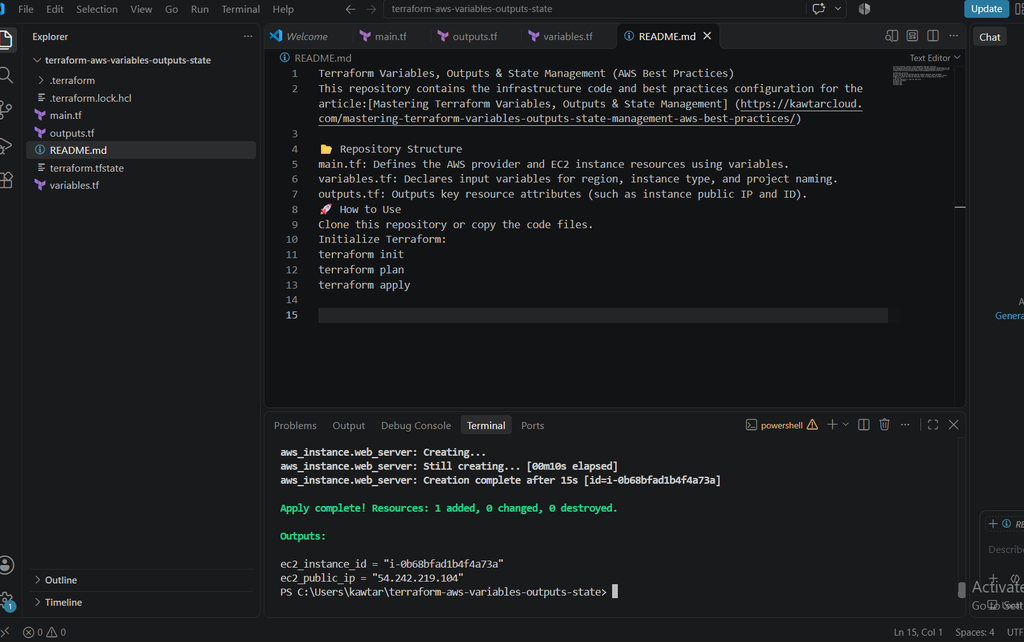
Step 4: Demystifying terraform.tfstate (And How to Protect It)
When you run Terraform, it automatically generates a file called terraform.tfstate. This file acts as a database mapping your local configuration to real-world resources in AWS.
Critical Security Rules for State Files:
- Never commit
terraform.tfstateto Git: The state file contains plain-text sensitive data (such as IP addresses, access keys, or passwords). - Use
.gitignore: Always add.tfstate,.tfstate.backup, and.terraform/to your.gitignorefile before pushing code to GitHub. - Use Remote Backends for Production: In team environments, store state files securely in AWS S3 with state locking via DynamoDB rather than on your local computer.
Conclusion & Next Steps
Organizing Terraform projects into variables.tf, outputs.tf, and main.tf transforms your IaC from basic scripts into production-ready infrastructure modules. Protecting your terraform.tfstate file ensures your cloud assets remain secure.
To build a strong foundation in cloud engineering and Infrastructure as Code, check out our comprehensive roadmap: The Complete Beginner’s Guide to Cloud & DevOps Engineering.
You can find the complete source code and configuration files used in this article in the GitHub Repository.