
Introduction
If you have been playing around with Terraform for a while, you probably started the exact same way I did: running terraform apply locally and watching that terraform.tfstate file pop up right there in your project folder. For quick local testing, it feels harmless.
But the moment you start working with a team, or when you want to deploy infrastructure that actually matters, keeping state files locally quickly turns into a ticking time bomb. Files get out of sync, changes overwrite each other, and secrets sitting in plaintext on a local laptop become an avoidable security nightmare.
To move from tinkering to building real, enterprise-grade cloud environments, shifting to a Remote State backend isn’t just an option—it’s mandatory. Let’s look at how to set this up properly using Amazon S3 and DynamoDB.
Why Local State Breaks Down in the Real World
Before writing any configuration, let’s address why local state doesn’t survive contact with reality:
- The Collaboration Dead End: If your teammate runs an apply from their machine while you run one from yours, you are living in two different realities. Terraform has no idea what the other person did because your local state files don’t talk to each other.
- The Concurrency Chaos: Without locking, two people (or two CI/CD pipelines) running updates at the same time will inevitably corrupt the state file.
- The Security Risk: State files are notorious for holding sensitive data—plaintext passwords, private keys, and IAM ARNs. Leaving them scattered across local machines goes against every basic security rule.
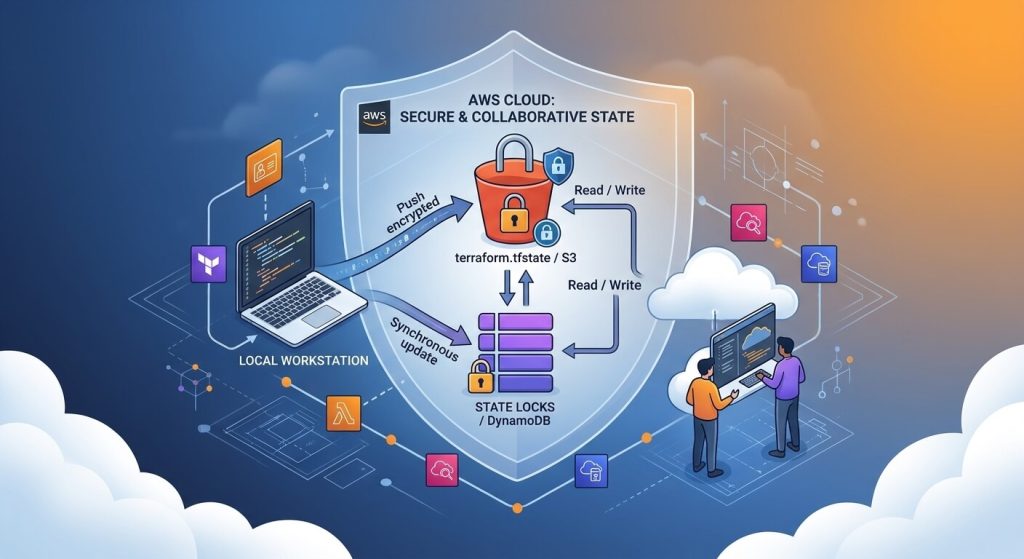
The Architecture: S3 + DynamoDB
To fix this, we rely on a battle-tested combination:
- Amazon S3: Acts as our centralized, durable storage for the
terraform.tfstatefile. We also enable versioning so we can roll back if a state file ever gets messed up. - Amazon DynamoDB: Acts as our locking mechanism. The moment Terraform starts an apply process, it writes a lock ID to DynamoDB. If someone else tries to run an apply simultaneously, Terraform politely stops them until the lock is released.
Project Structure
Here is how we organize our clean, multi-file Terraform layout for this setup:
terraform-remote-state/
 main.tf
 variables.tf
 outputs.tf
 backend.tf
Step-by-Step Implementation
1. Configure the Backend (backend.tf)
This is where we tell Terraform where to live and how to protect itself. Notice how we define the backend block:
terraform {
required_version = ">= 1.0.0"
backend "s3" {
bucket = "kawtar-cloud-hub-terraform-state"
key = "iam-module/terraform.tfstate"
region = "us-east-1"
dynamodb_table = "terraform-state-locks"
encrypt = true
}required_providers {
aws = {
source = "hashicorp/aws"
version = "~> 5.0"
}
}
}2. Define Variables (variables.tf)
Keep things clean and modular by separating your variables:
variable "aws_region" {
type = string
default = "us-east-1"
description = "Target AWS Region"
}
variable "environment" {
type = string
default = "production"
description = "Environment name"
}3. Main Configuration (main.tf)
Here is where we provision the S3 bucket with strict security baselines (blocking public access and enforcing encryption) alongside our DynamoDB locking table:
provider "aws" {
region = var.aws_region
}
S3 Bucket for Remote State Storage
resource "aws_s3_bucket" "state_bucket" {
bucket = "kawtar-cloud-hub-terraform-state"
force_destroy = false
lifecycle {
prevent_destroy = true
}
}Enable Versioning for State History Recovery
resource "aws_s3_bucket_versioning" "enabled" {
bucket = aws_s3_bucket.state_bucket.id
versioning_configuration {
status = "Enabled"
}
}
Server-Side Encryption
resource "aws_s3_bucket_server_side_encryption_configuration" "default" {
bucket = aws_s3_bucket.state_bucket.id
rule {
apply_server_side_encryption_by_default {
sse_algorithm = "AES256"
}
}
}Block Public Access
resource "aws_s3_bucket_public_access_block" "public_block" {
bucket = aws_s3_bucket.state_bucket.id
block_public_acls = true
block_public_policy = true
ignore_public_acls = true
restrict_public_buckets = true
}
DynamoDB Table for State Locking
resource "aws_dynamodb_table" "state_locks" {
name = "terraform-state-locks"
billing_mode = "PAY_PER_REQUEST"
hash_key = "LockID"
attribute {
name = "LockID"
type = "S"
}
}4. Outputs (outputs.tf)
output "s3_bucket_arn" {
value = aws_s3_bucket.state_bucket.arn
description = "The ARN of the S3 state bucket"
}
output "dynamodb_table_name" {
value = aws_dynamodb_table.state_locks.name
description = "The name of the DynamoDB lock table"
}FinOps Reality Check: What’s the Cost?
One of the best things about using S3 and DynamoDB for remote state is that it’s practically free for personal projects, labs, and even small teams.
- Storing a few kilobytes of state data in S3 costs a tiny fraction of a cent per month (around $0.023 per GB).
- Using DynamoDB under an on-demand billing model (
PAY_PER_REQUEST) means you only pay for actual read/write operations during applies, keeping your locking costs well under $1.00 per month. - Pro tip: If your state file grows massively over time due to hundreds of resources, make sure to configure S3 lifecycle rules to transition old state versions to cheaper storage tiers or clean them up.
Enterprise-Grade Security Standards
When handling infrastructure state, security isn’t negotiable. Keep these rules in mind:
- Never hardcode secrets: Do not paste your AWS access keys directly into your files. Always rely on environment variables (
AWS_ACCESS_KEY_ID,AWS_SECRET_ACCESS_KEY) or secure IAM Roles and Profiles. - Enforce encryption everywhere: Notice the
encrypt = trueline in our backend block and the AES-256 rule on the S3 bucket? That ensures your state secrets are encrypted both in transit and at rest. - Least Privilege Access: Ensure that only the engineers or CI/CD pipelines responsible for deployments have read/write access to this specific S3 bucket and DynamoDB table.
Troubleshooting Common Issues
Even with a clean setup, you might occasionally run into a couple of classic roadblocks:
- The Stale Lock Error (
Error acquiring the state lock):- Why it happens: If a terminal crashes or a pipeline gets cut off mid-apply, Terraform leaves a lingering lock ID in DynamoDB.
- How to fix it: Double-check that no one else is currently running an apply, then manually release the lock using:
terraform force-unlock <LOCK_ID>
- The Chicken-and-Egg Initialization Error (
Backend initialization error: S3 Bucket does not exist):- Why it happens: You can’t tell Terraform to store its state in a remote bucket before that bucket actually exists.
- How to fix it: Always provision your S3 bucket and DynamoDB table first (you can do this via a quick local apply or bootstrap script) before uncommenting the backend block and running
terraform init.
Quick Start Guide & Actionable Challenge
Prerequisites
- An active AWS Account.
- Terraform CLI installed locally.
- AWS CLI configured (
aws configure).
Execution Steps
- Clone the repository:
git clone https://github.com/Kawtar-cloud-hub/terraform-remote-state.git
cd terraform-remote-state
- Initialize Terraform:
terraform init- Validate Configuration:
terraform validate- Review Execution Plan:
terraform plan- Apply Changes:
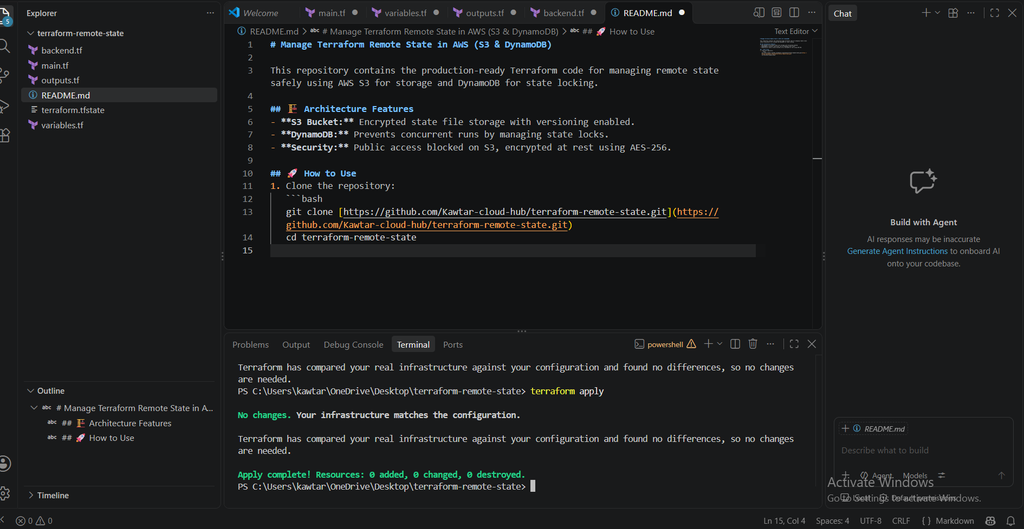
terraform applyScreenshot showing successful code execution in the VS Code terminal.
Your Challenge:
Take an existing local Terraform project you’ve worked on, add this backend.tf configuration, and migrate your state to S3. When you run terraform init after setting it up, say yes when prompted to copy your existing local state to the remote backend, then verify that the file shows up inside your S3 bucket.
Once you’ve nailed it, push your clean code to your repository!
Conclusion
Moving to a remote state setup with S3 and DynamoDB is one of the most rewarding steps you can take in your cloud engineering journey. It brings order, safety, and true collaboration to your workflows.
Get the Full Code
You can find the complete, production-ready code structure used in this guide on the repository here: 👉 Access the Full Terraform Remote State Code on GitHub
Let’s Chat!
How do you currently handle state locking in your projects, or have you ever run into a nightmare lock scenario? Drop a comment below, and let’s discuss.
Stay tuned to Kawtar Cloud Hub for more hands-on cloud engineering breakdowns!